Record a video
The pose detector needs a clean side-on view of you pedalling. Get this part right and everything else is easier.
Setup
- Camera position. Side-on, perpendicular to the bike. Lens height roughly at hip level when seated. Far enough back that the whole rider and bike fit in frame with a bit of headroom.
- Stable mount. A tripod, a chair, a stack of books. Anything that doesn't move. Handheld footage will wobble and the joint angles will jitter with it.
- Trainer, not the road. Indoor trainer or rollers. You need a fixed reference frame.
- Lighting — really, give it some. Phone cameras are sneaky: in dim rooms they drop the shutter speed to compensate, which means every fast-moving leg gets smeared into motion blur. Blur eats joints. The pose detector sees mush instead of a knee, and your angles will jitter or land in the wrong place. Bright, even light = short shutter = crisp frames. Open the curtains, switch on overheads, point a desk lamp at the bike. Cycling is not moody-portrait territory.
- Avoid harsh backlight. A window behind you(silhouette mode) will defeat the detector. A window behind the camera is fine.
- Clothing. Bib shorts and a fitted top beat baggy jerseys. The detector tracks joints, and joints are easier to find when they aren't hidden under fabric.
- Pick one side. Decide left-side or right-side view before you start. You'll tell the app which side it's looking at.
Check the footage before you upload
Open the video on your phone or laptop and scrub through it frame by frame (most players: pause, then arrow keys or comma/period). You're looking for:
- Sharp legs at the bottom of the stroke. If the leg is a blur smear when extended, you don't have enough light. Re-shoot.
- The whole bike in frame the whole time. No cropped knees at the top of the stroke, no wheel cut off.
- The camera doesn't drift. Same framing on the first frame and the last.
Two minutes of frame-by-frame inspection here saves twenty minutes of wrestling with bad pose detection later.
What to film
- Get into your normal riding position. Warm up for a minute first — you settle differently when you're cold.
- Steady cadence at a moderate effort. Don't sprint. Don't soft-pedal.
- 20–30 seconds of footage is plenty. You'll trim to a shorter clip in the app.
- Hands on the hoods.
Want the deep version? Specialized publishes a free PDF called Retül At Home Bike Setupthat covers camera placement and DIY measurement in detail. We borrowed the basics; they wrote the book.
Run the analysis
Upload, trim, process. The app does pose detection in your browser — your video isn't shipped off to a third party for inference.
- Dashboard → New analysis. Pick the bike (or create one).
- Upload the video. Drag-drop or pick from disk. There's a per-tier size cap; you'll see it on the upload screen.
- Trim the clip. Drag the range handles to a clean stretch — a few full pedal strokes is enough. Skip the wobbly first second where you settle in.
- Pick the side. Tell the app which side of you the camera saw.
- Process. Pose detection runs in your browser. Takes a minute or two depending on clip length and your machine.
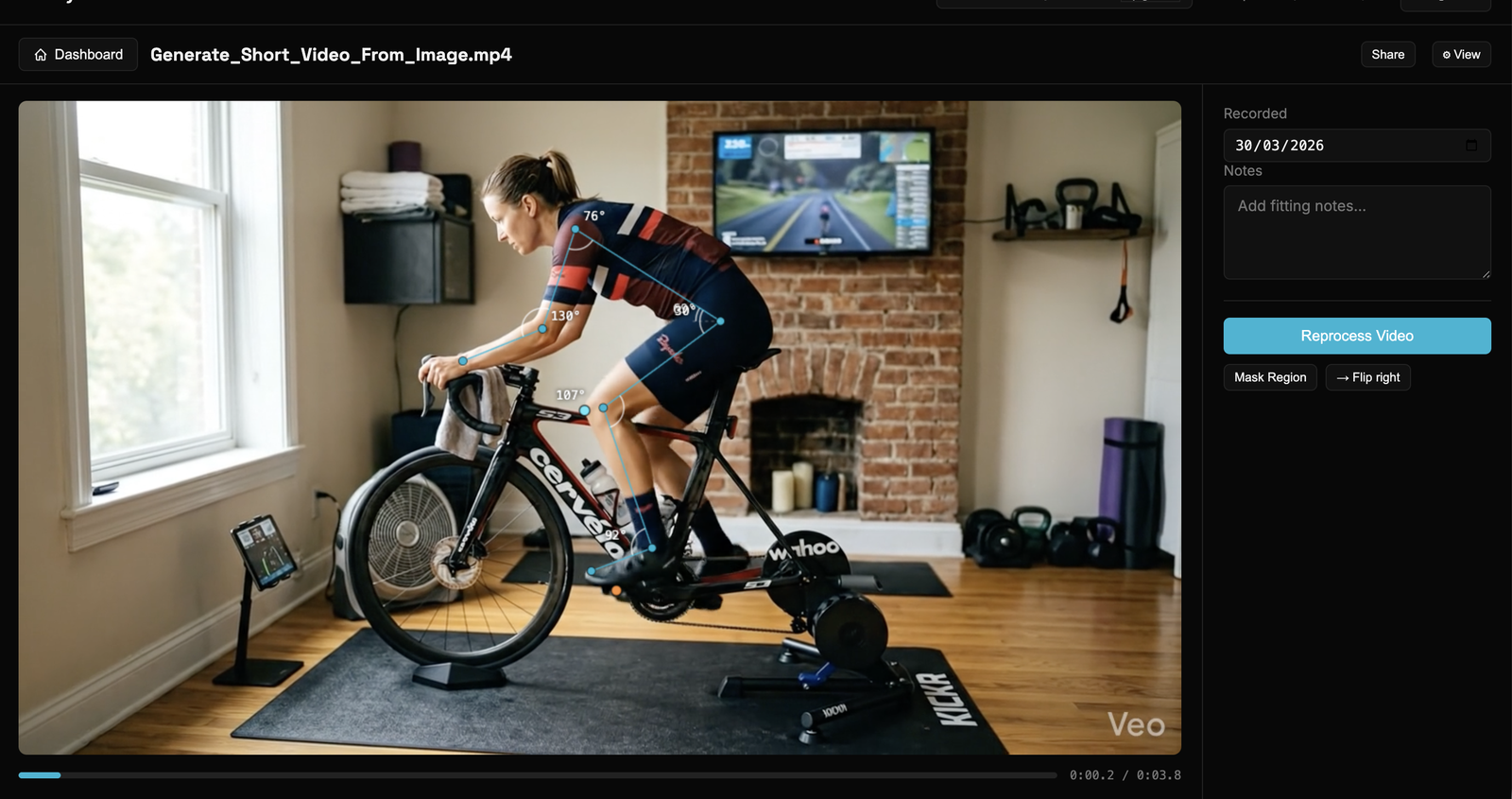
- Refine. If a keypoint is in the wrong spot on a given frame, click it and drag it where it should be. The angle updates live.
Use the Fit Wizard
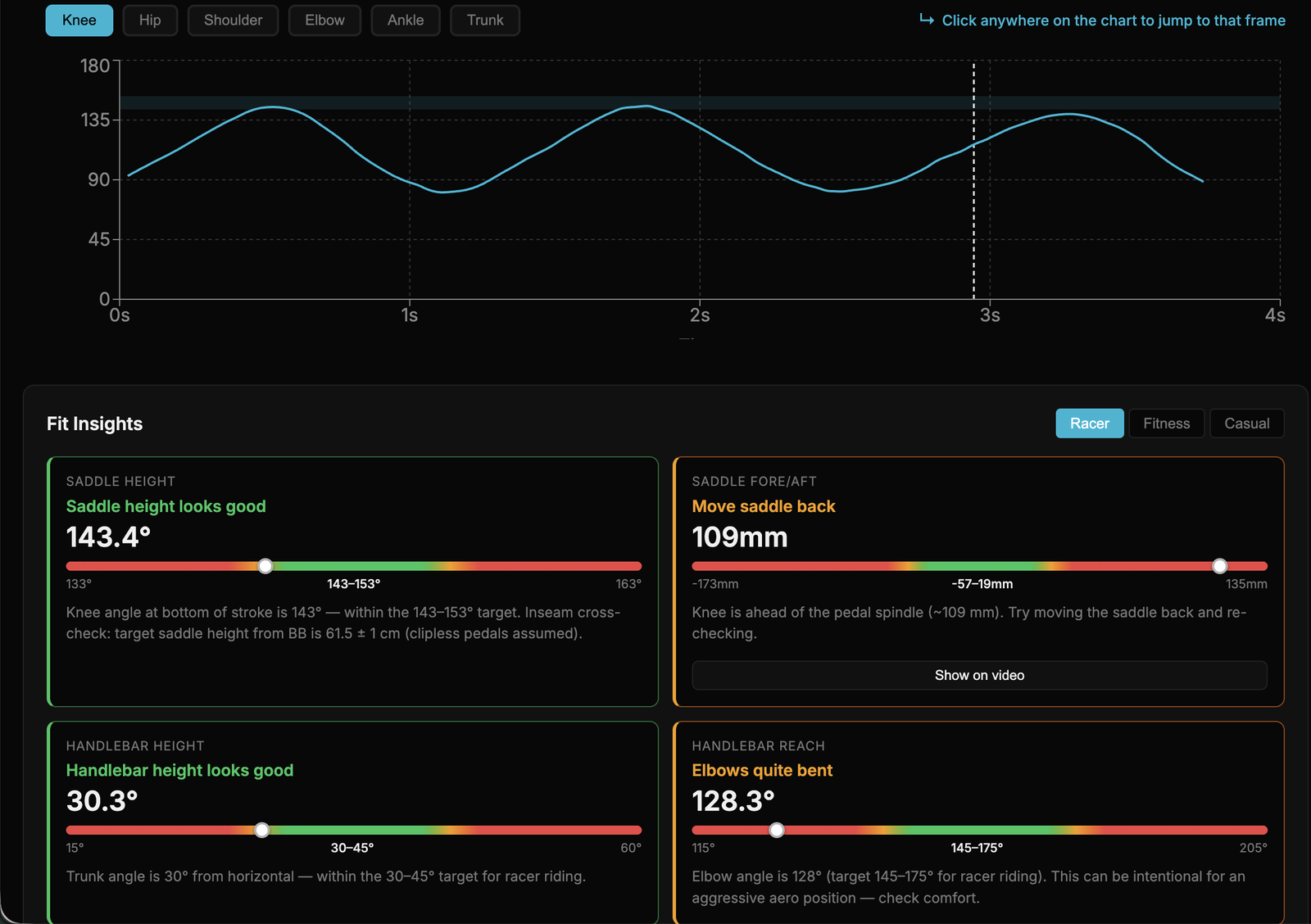
The Fit Wizard walks you through a small set of confirmations the auto-detector can't make on its own. Done once per analysis. Each step takes seconds; the whole thing is usually under two minutes.
What it asks for, and why
- Rider type & body measurements. Racer, fitness, or casual — this picks the right reference range to compare your angles against. It's set per analysis, because different bikes can have different fits. Height and inseam belong to you, not the video: the wizard asks once and saves them to your Account page, where you can change them. Both are optional; inseam makes the saddle-height and knee-over-pedal-spindle (KOPS) numbers more precise.
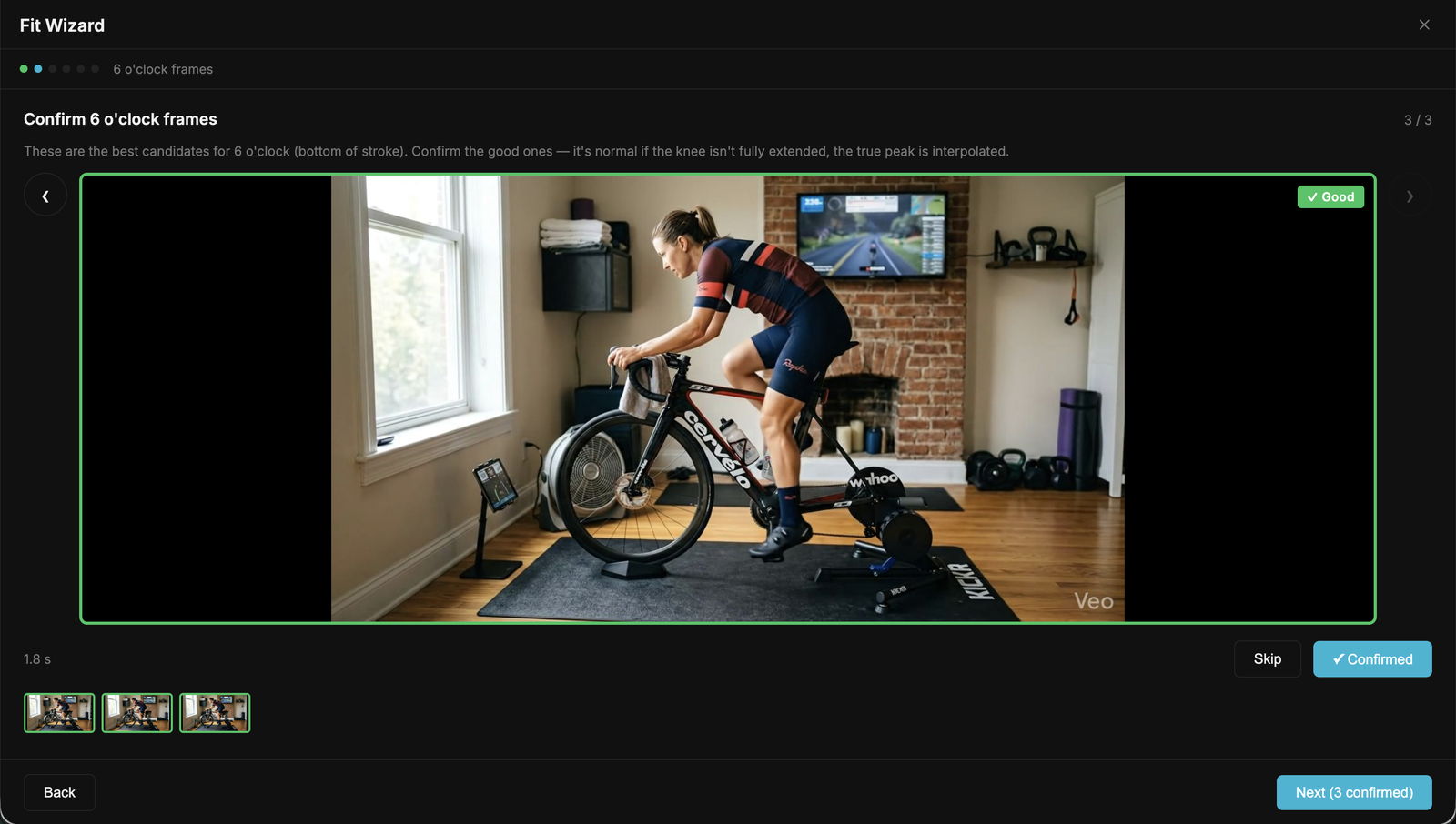
- Confirm 6 o'clock frames. The detector picks candidate frames where the pedal is at the bottom of the stroke. You tick the ones that look right. Don't worry if the knee isn't perfectly straight — the true peak is interpolated between frames.
- Pick the best 3 o'clock frame. One frame, the one where the crank is most horizontal (pedal furthest forward). Used for KOPS.
- Click the front of your kneecap. On the 3 o'clock frame. The skeleton joint sits inside the leg; KOPS needs the actual front edge of the knee.
- Click the centre of the pedal spindle. Same frame. Drop a plumb line from the knee point and you'll see how far in front of (or behind) the spindle it lands.
- Set a horizontal reference. Drag a line along something you know is level in the shot (the floor, a window sill). Corrects for a slightly tilted camera.
Tips
- You can re-open the wizard any time and re-do a step. Earlier confirmations are kept.
- Frame-by-frame arrows on the video player let you nudge to the exact frame before clicking.
- If the auto-suggested 6 o'clock candidates look terrible, it's almost always a video-quality problem (motion blur, bad lighting). See section 01.
Configure the view
The visualisation panel lets you control what's drawn on top of the video.
- Skeleton. Toggle the overlay on or off. Pick a colour that contrasts with your kit.
- Joint markers & angles. Show or hide the dots and the live angle numbers.
- Trace overlays. Pick joints (knee, ankle, hip, etc.) to draw their motion path across the clip. Useful for spotting how much a knee tracks side-to-side.
- Video opacity. Fade the video down to make the skeleton easier to read.
Share & blur
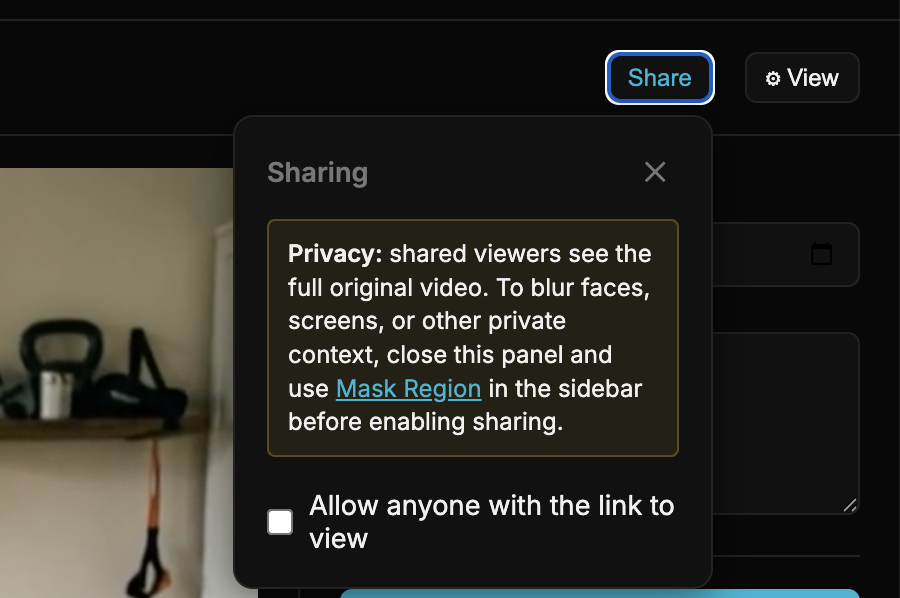
Sharing makes a read-only link to one analysis. Anyone with the link sees it as you do: the video, the chart and the fit insights, with the height and inseam from your Account page that the insights use. They can't change anything, and they don't need an account. Nothing else of yours is exposed.
To share
- Open the analysis. Click Share in the top bar.
- Copy the link. Paste it wherever — forum, email, group chat.
- Done. You can revoke the link at any time from the same panel.
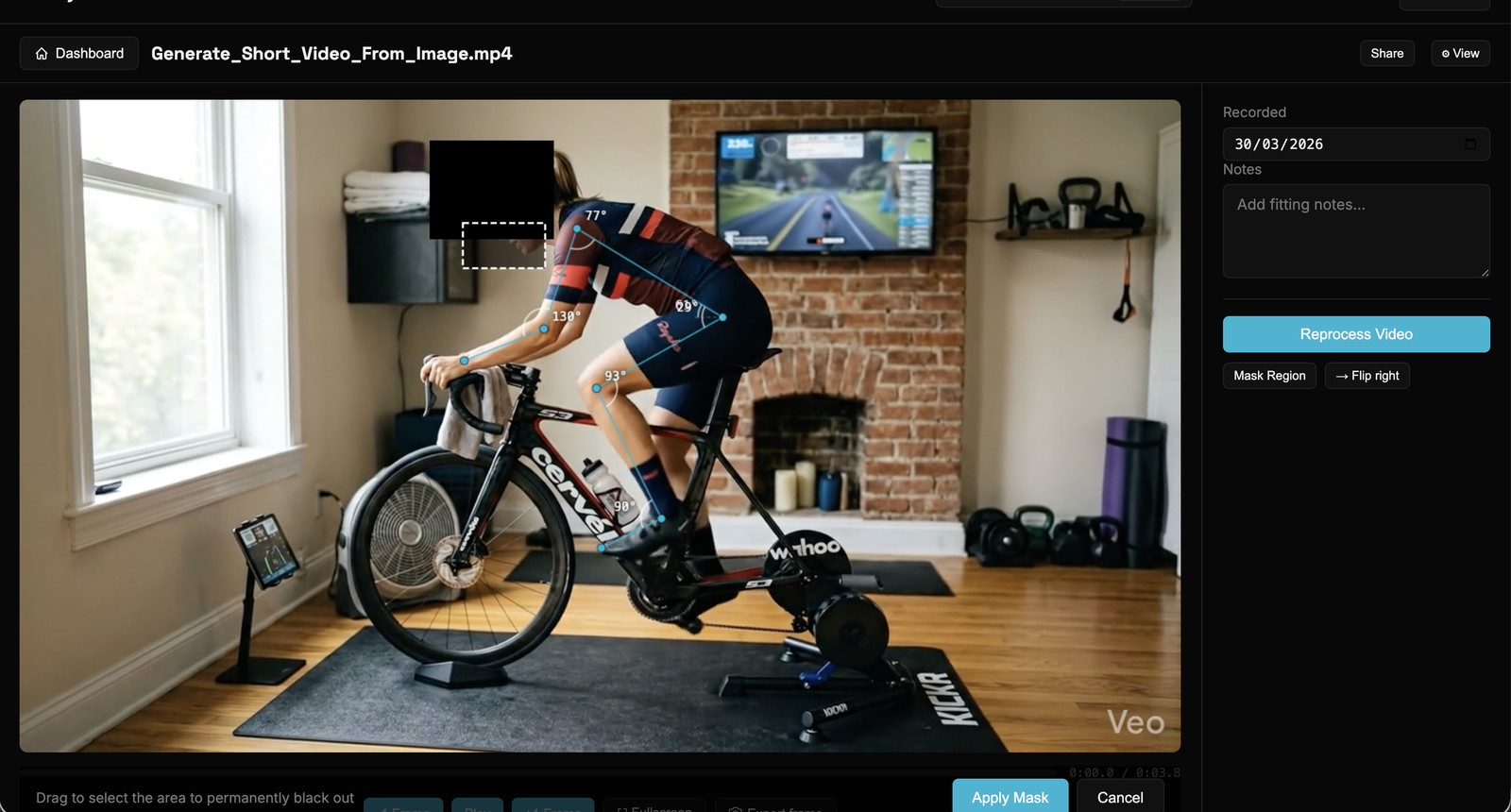
Before you share, blur what you don't want shown
The shared link shows the original video. If your face is in frame, or there's a screen with personal info behind you, blur it first.
- Click Mask Region on the analysis page.
- Drag a rectangle over the area you want blurred.
- Apply. Your browser re-encodes the video with the mask baked in (or our server does, if your browser can't). This is permanent for that analysis.
Further reading
We're a measurement tool. The interpretation side is a deep rabbit hole, and other people have written better than we ever will. A few places to start:
- Retül At Home Bike Setup — Specialized / Retül. Free PDF on DIY camera-based fitting; the camera-placement pages are gold. (©Specialized.)
- Bike-Fit 101: Your Toolset for a Great Bike Fit — Rick Schultz. Paid eBook (~$10) covering the self-fit process end to end. Worth it if you want the long version. (©RSchultz Consulting.)
- Steve Hogg Bike Fitting — stevehoggbikefitting.com. Long-form articles on fit philosophy and biomechanics. Opinionated, in a good way.
Our own guides:
- Check your bike fit with a phone video
- Knee angle at the bottom of the pedal stroke
- Saddle height calculator
Got a resource you keep coming back to? Tell us — support@fixmy.fit.
Still stuck?
Email support@fixmy.fit with the analysis link (use Share to make one) and a sentence about what's confusing. We read every one.